
Having the “Please Close Interception” Error?
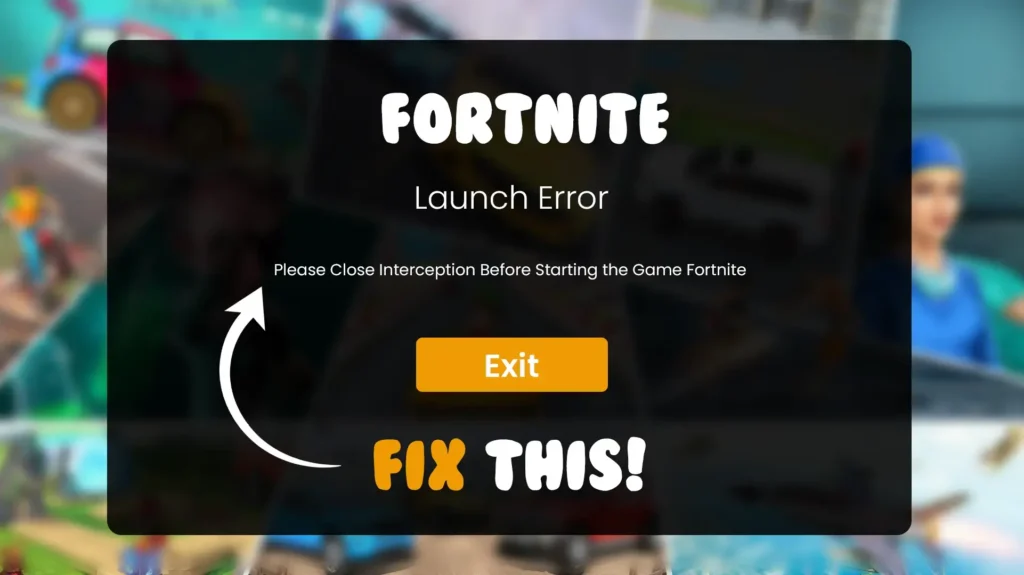
You are about to get into Fortnite and boom! The screen goes off to show Please Close Interception Before Starting The Game.
Frustrating, right? Nothing strange was installed, and Fortnite does not start.
The good news? You will not have to wait till Epic Games support or reinstall Windows. It is one of those few instances when you can repair on your own and that is without any difficulty.
What Is Interception and Why Does It Cause This Error?
Interception is a windows driver that alters your keyboard or mouse detecting input signals into your system.
It is occasionally installed by players to remap their keys, perform custom macros, or accessibility aids, but the Easy Anti-Cheat (EAC) of Fortnite is unable to differentiate between fair use and malignant use.
The fact that cheaters sometimes use similar tools to automate the gameplay means that EAC automatically blocks any program that uses Interception.
And though you might never have downloaded it by hand, it might have been included with another application such as a macro recorder or device tuner, and it is this that causes the launch error.
What Is the “Please Close Interception” Error in Fortnite?
This is where the error comes in during the launch of Fortnite when Easy anti-cheat programs are aware of the Interception driver as it is running in the background.
To prevent unfairness in the game, the system prevents the loading of the game until such a driver has been removed or disabled.
The message usually reads:
Launch Error: Please Close Interception Before Starting the Game Fortnite
The solution to it is to delete that driver and ensure that EAC is restored to be functional and up to date.
How to Fix the “Please Close Interception” Error in Fortnite?
Let’s go step by step. Go through each method sequentially so that the best results can be achieved.
Method 1: Uninstall the Interception Driver
Step 1: Download Interception Uninstaller from GitHub
Install the official Interception package from its Github page.
Step 2: Unzip the Download
Unzip downloaded file into an existing folder i.e.:
Downloads → Interception → command line installer
Step 3: Open Command Prompt as Administrator
Go to Start menu and type in cmd and then right- click Command Prompt and run as an Administrator.
Step 4: Navigate to the Installer Folder
Type the following command and press Enter:
cd “%USERPROFILE%\Downloads\Interception\command line installer”
Step 5: Run the Uninstaller
Type this command and press Enter:
install-interception.exe /uninstall
Step 6: Restart Your PC
Wait till the uninstallation process is finished and start your computer again.
Step 7: Launch Fortnite Again
Open Fortnite using the Epic Games Launcher.
And suppose the mistake vanishes, then you are finished! If not, continue below.
Method 2: Repair Easy Anti-Cheat (EAC)
In case the former did not work, it is possible that EAC could be corrupted or wrong.
Follow these steps:
- Click the three dots (located at the top right of the Epic Games Launcher – Library ) – Manage – click Fortnite.
- Navigate to:
FortniteGame – Binaries -Win64 -EasyAntiCheat.
- Install operation of EasyAntiCheat EasyAntiCheat_EOS_Setup.exe (Run as Administrator).
- Choose Repair Service.
- When this is done, restart your PC.
- Fortnite can be launched solely with the help of the Epic Games Launcher.
If it still fails:
- Ensure that your windows or Mac is up-to-date.
- Install the latest Microsoft Visual C++ Redistributables (2015–2022).
- To verify that a scan is being done, a System File Checker is used by running the following:
sfc /scannow
- Check Sign of EAC connectivity; as your browser displays 200-HTTP OK when viewing EAC update URLs.
- If in case antivirus/firewall is blocking EAC, temporarily switch it off.
- Conflicted close background macro tools, overlays or RGB managers.
- Lastly, check the files of Fortnite under Epic Games Launcher – Manage- Verify.
Once these measures are taken, the problem has been resolved by most players.
Method 3: Reinstall Fortnite and Epic Games Launcher
If none of the above worked:
- Remove Fortnite through the Epic Games Launcher.
- Reinstall a fresh copy.
- In case the issue does not disappear, remove and install the Epic Games Launcher itself.
This is to make sure that there is a clearance of any hidden file conflict or stashed drivers.
Other Common Fixes For Please Close Interception Error
In some cases, the error may still exist despite the removal of the Interception driver or the fix of Easy Anti-Cheat due to the software or system conflicts. These are the fast solutions that will be tried before Fortnite is reinstalled fully.
Update Windows and Device Drivers
One of the simplest methods of avoiding anti-cheat conflicts is to ensure the drivers and the operating system are upgrade to date. Stale or nameless drivers may cause detection errors, in particular, input or USB device drivers.
Disable Background Macro Tools
Macro recorders, auto-clickers, and keyboard mapping software put Interception drivers into silent silent mode. Turn them all off, or entirely off before Fortnite launches.
Check Third-Party Input Software
There are other gaming keyboards and mice that install their input managers or low-level drivers. In case you have programs such as reWASD, JoyToKey or even an individual controller mappers open or turned, shut them down temporarily to trial.
Disable Antivirus Temporarily
Security software occasionally interferes with Easy Anti-Cheat connecting with its servers. To verify whether the error is gone you should disable your antivirus and restart Fortnite in a couple of minutes. In case it does, place Fortnite and EAC in the antivirus whitelist.
Other Games Affected by the Interception Driver
People are not the only ones who have this problem in Fortnite. Other games using Easy Anti-Cheat can suffer errors in launching provided the same Interception driver is used.
The most widespread ones are the following:
- Apex Legends
- Valorant
- PUBG (PlayerUnknown’s Battlegrounds).
- Rainbow Six Siege
Each of those titles is based on related anti-cheat measures. They will also be able to use the same fixes, i.e. uninstalling Interception and repairing EAC.
Final Notes
As long as you have done everything right, the Launch Error: Please Close Interception Before Starting the Game Fortnite should be fixed by now. Installing the Easy Anti-Cheat will not interfere with your normal keyboard or mouse functions, just clears the background driver which is blocked by Easy Anti-Cheat.
Remember to update your Windows and Epic Games Launcher to avoid such an incidence in the future. Do not use macro or input-mapping programs based on concealed drivers and in case you install any other in the future, also remove it. Having fixed every little detail and cleaned it up, Fortnite must start without any troubles and help you resume the game without a single pause.